
End-to-End Factory Label Management
Inspection finds the problem. End-to-end management fixes it.
Inspection is the way in: every label is photographed and compared, so quality problems become visible, with evidence. But inspection only finds problems; it does not solve them. Solving them means going back to before printing: printer, settings, template and data, supplies.
What we hear on the shop floor
The root usually lies before printing.
“Alarms every day, piles of scrap, and the next batch fails the same way.”
Root:Found but never fixed; the source is untouched“Same template, same printer model, yet one prints unclear.”
Root:The two printers have different settings“New batch of ribbon, and the print rubs off.”
Root:Labels and ribbon do not match the template“Night shift has a problem, and no engineer can get there.”
Root:Nobody can see the line or help the operator
Inspection alone
Fail → Scrap, reprint → May repeat next batch
The labels are already printed, and the material and time are gone. The cause is untouched, so the problem comes back.
Smart BLC V5 end-to-end management
Fail → Trace the source → Fix → Stop it before printing
Printer and firmware, print settings, templates and variable data, labels and ribbon are in one system, so you can trace the cause and fix it there. Video surveillance and remote assistance keep help close to the line.
One system, seven capabilities
One interface, one set of accounts, licensed as you need.
 Inspection
 Device
 Templates
 Print
 Supplies
The way in: label inspection
Every label printed is photographed, compared and judged on the spot. A wrong character, a missing line or an unreadable code is found before it ships.
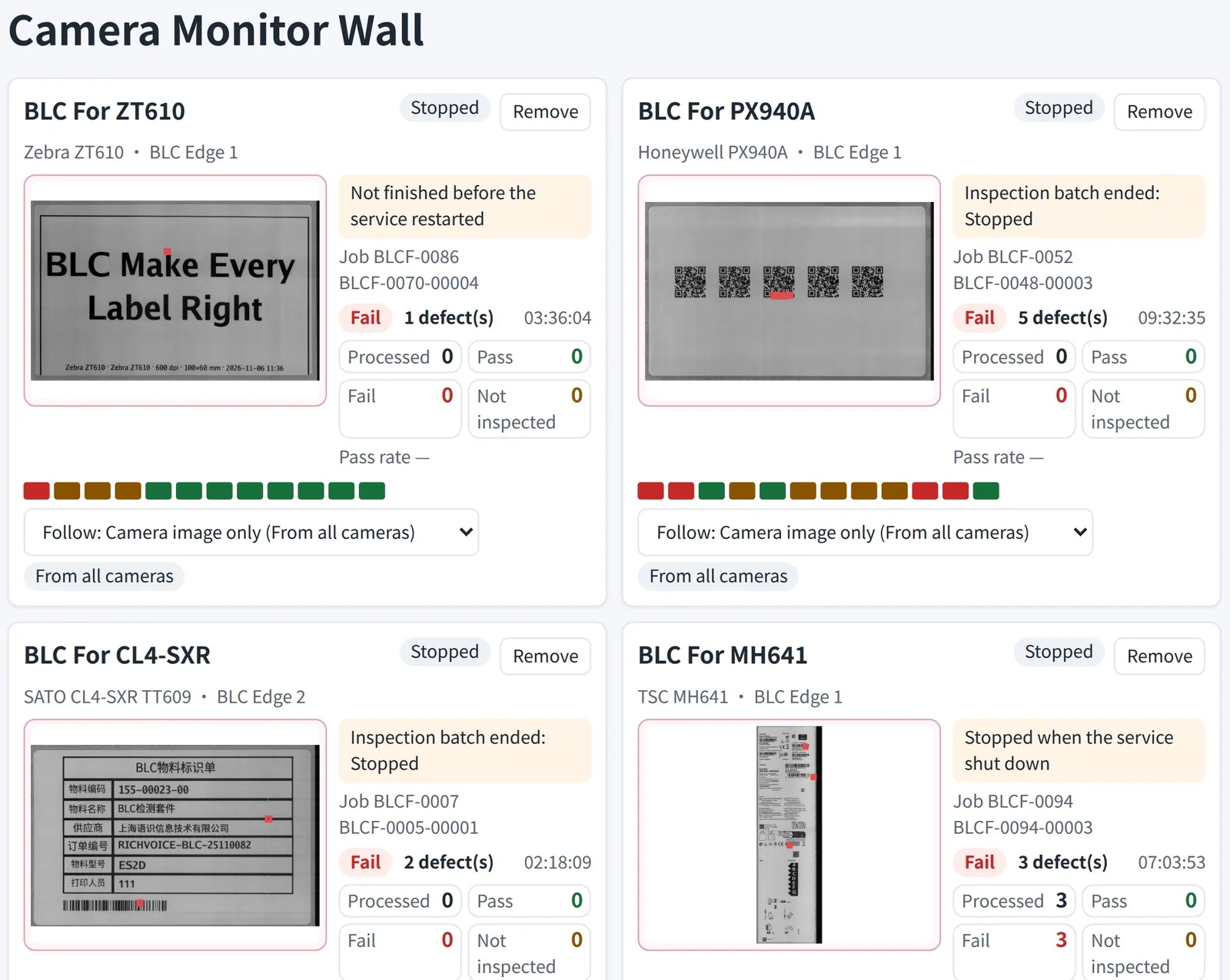
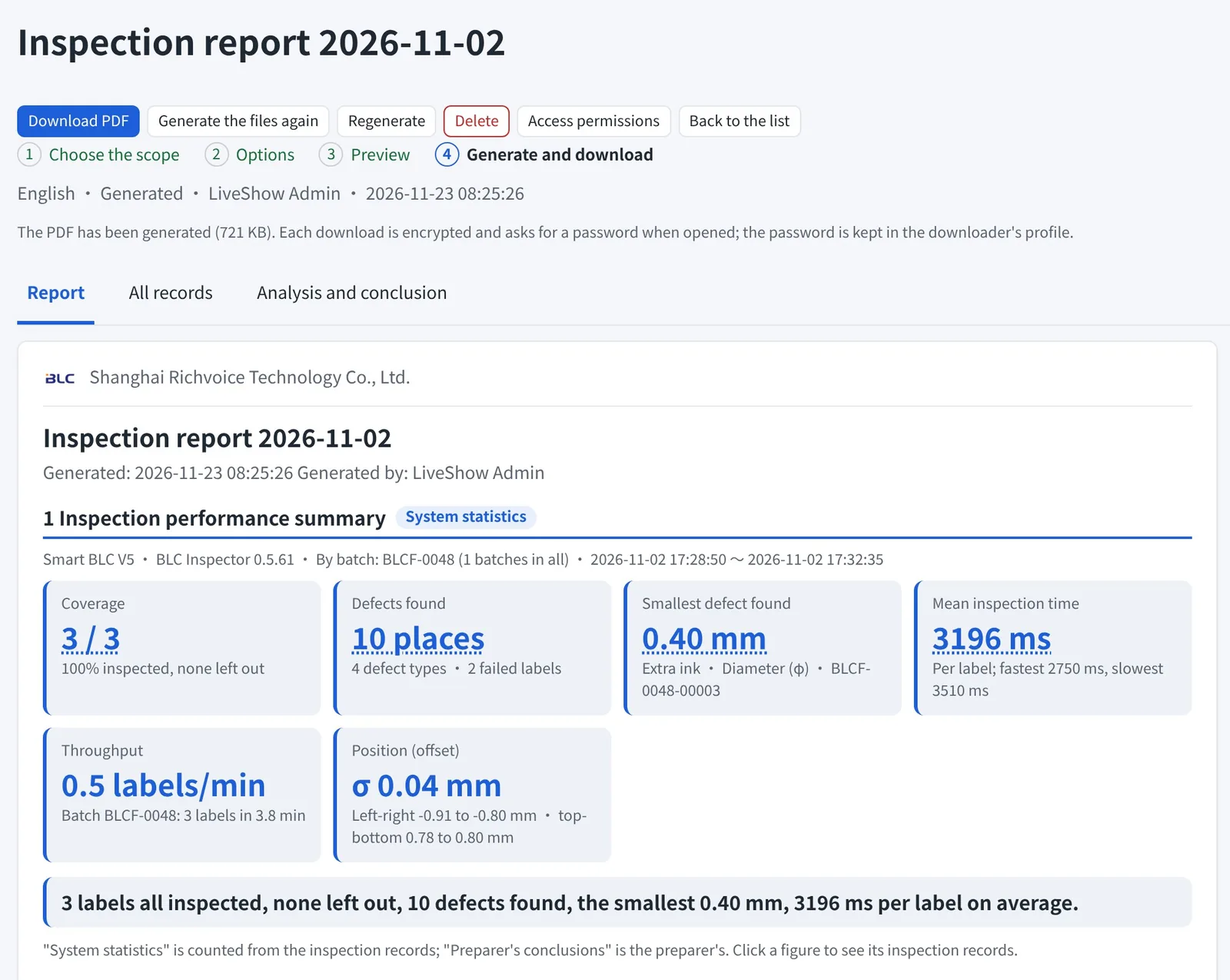
Inspection found it. Now what?
On a fail, the screen flashes and the printer pauses; every label keeps its camera image and record. To stop the same problem coming back, go to the source: printer and settings, template and data, labels and ribbon.
Sources 1 and 2: printerSource 3: template and dataSource 4: supplies
Sources 1 and 2 · Printer device management
The right printer, the right settings
Model, firmware, current status and settings of every printer, in one device directory tree. No need to walk over to it.
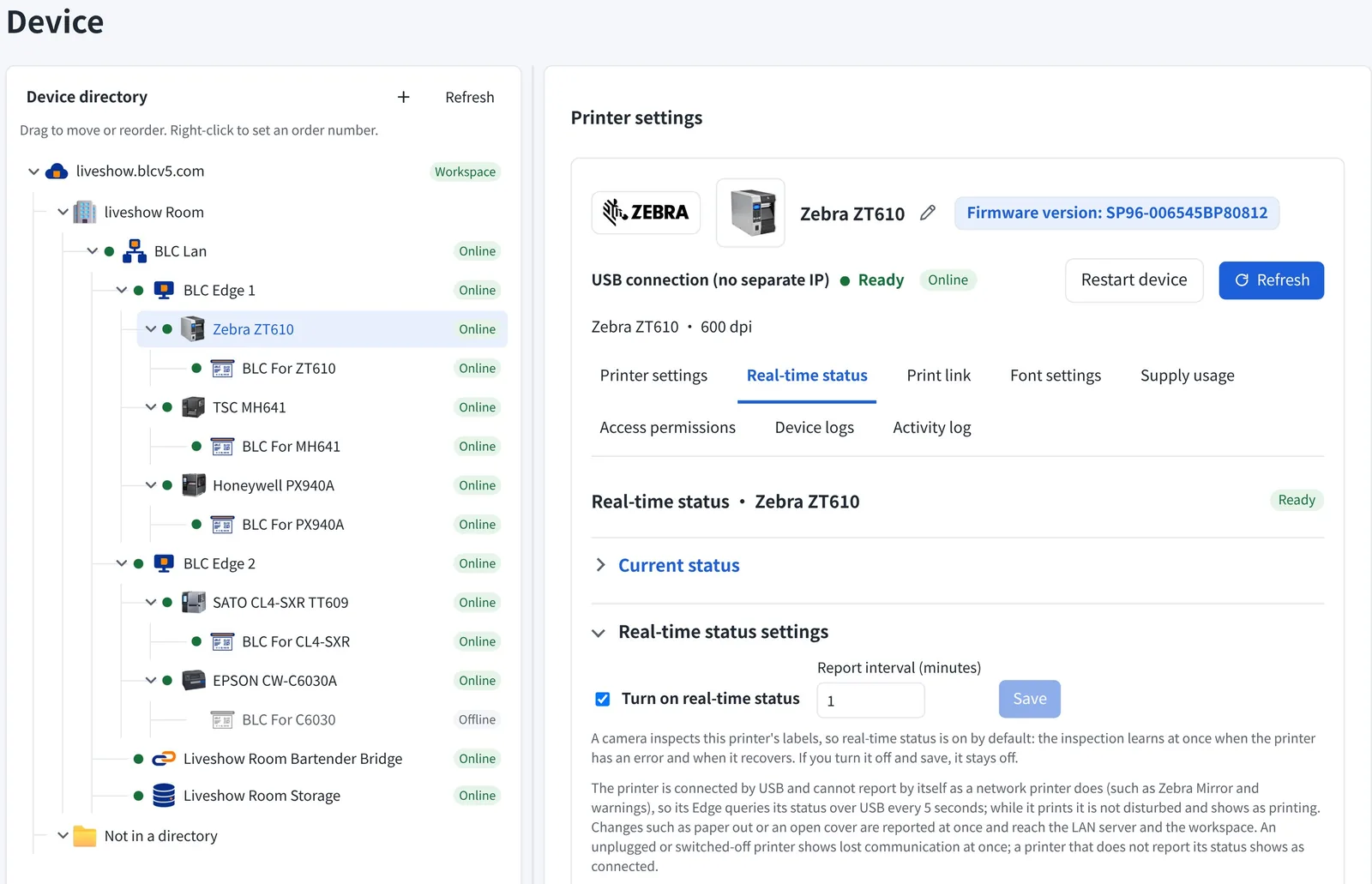
- One device directory treeWorkspace, LAN, Edges, printers and cameras, arranged by site
- Five brandsZebra, SATO, TSC, Honeywell and Epson, by network or USB
- Real-time statusReady, media out, cover open, paused; every stop and recovery logged
- Remote controlPause, feed, calibrate media, restart, configuration and test labels
- On recordEach printer has an activity log of who did what, and when
- Firmware: visible, updatableRead the version; update Zebra and TSC remotely, operator on record
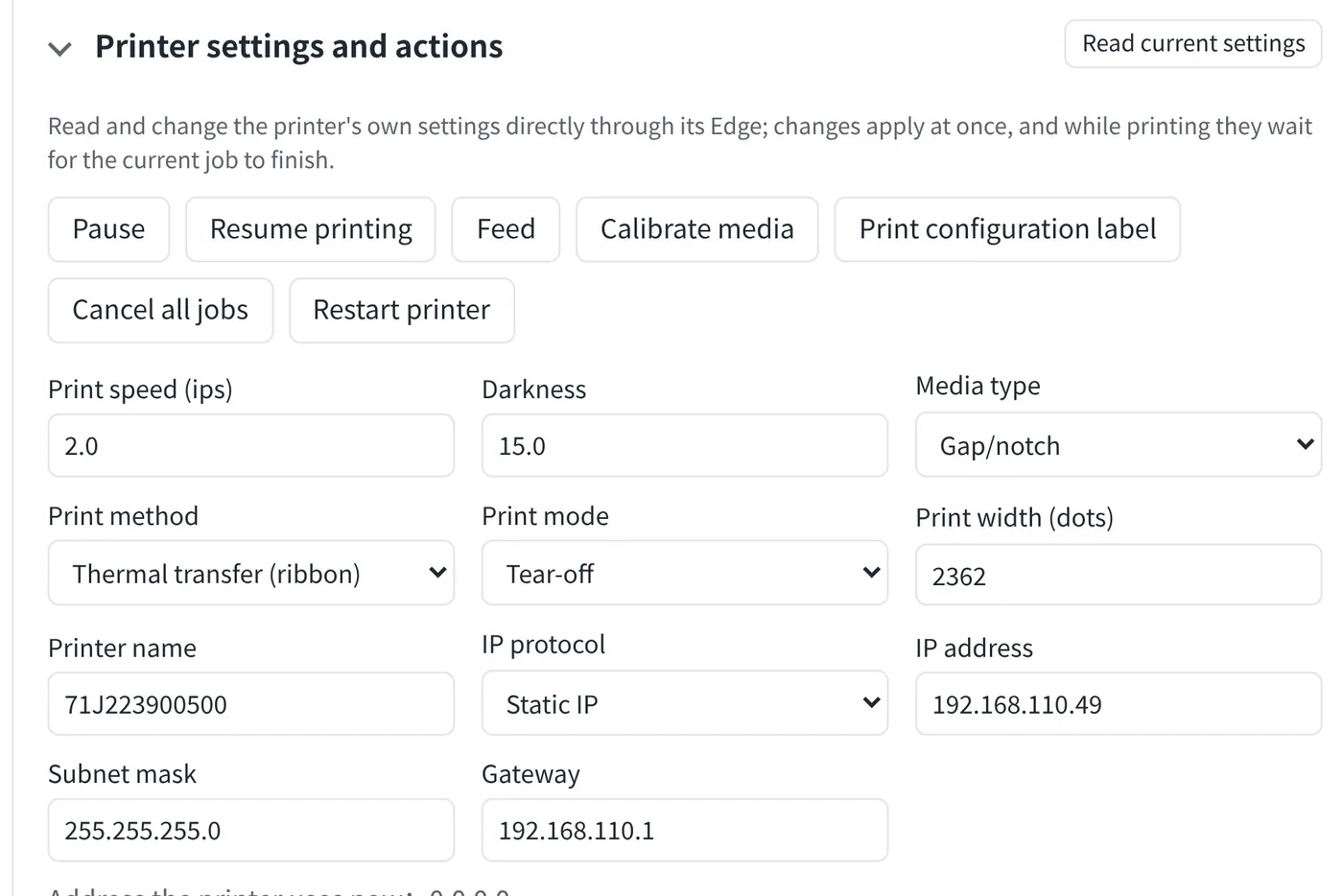
Actions and settings
Pause, feed, calibrate media, print a configuration label or restart in one click; read and change speed, darkness, media type, print method, print mode and network address.
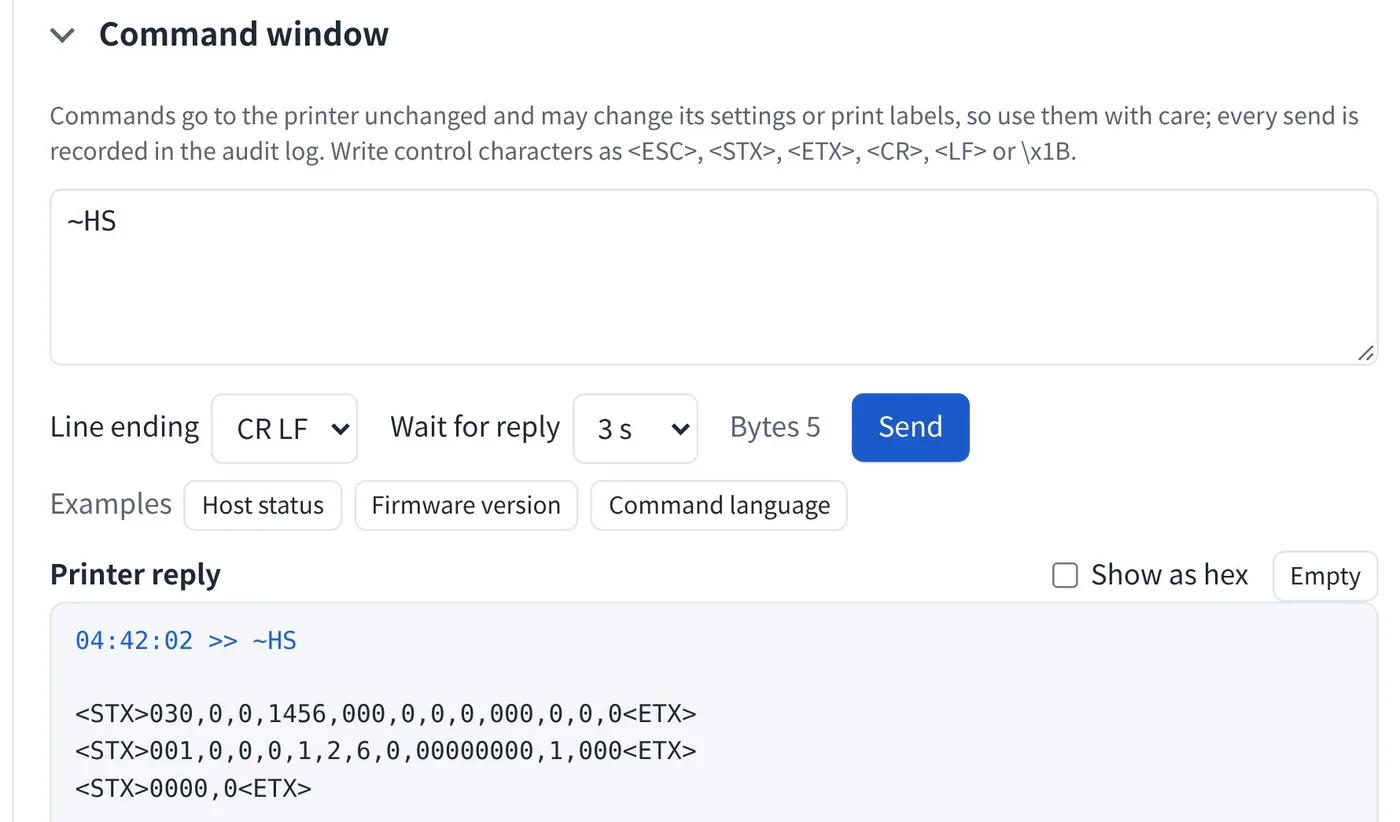
Command window
Send commands to the printer and see its reply at once, handy for troubleshooting; every send is recorded in the audit log.
Catch the wrong printer before anything prints
- Resolution mismatch warning BLC templates are designed for a printer resolution; sending one to a printer with a different resolution raises a warning.
- Narrow barcodes held A barcode too narrow for this printer is held after submission and prints only once confirmed.
- Resident fonts by model Resident fonts of Zebra, SATO, Honeywell and TSC printers are listed by model, so the right one is chosen at design time.
Source 3 · Templates, data and the print process
The right template and data, a print process in view
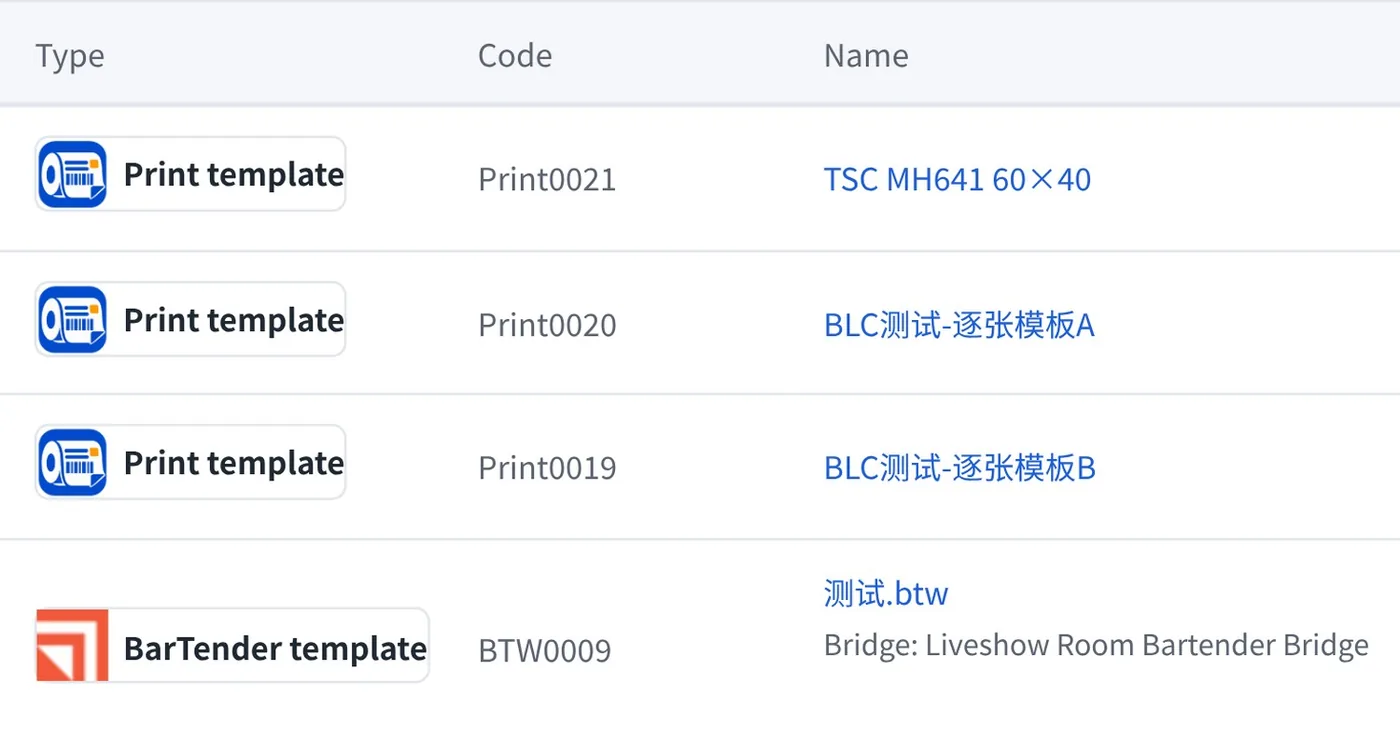
Preview and print your BarTender templates as they are, with no redesign; data and templates stay under control, and you can see what every label printed.
- Preview BarTender templates directlyA .btw file is previewed on upload, and again for the printer you choose, so content and position are checked before printing.
- Print straight from .btw templatesNo redesign. Pick the template, fill in the lot and date, choose the printer; BarTender produces the print commands.
- No retyped dataBarTender data integration fills in serial numbers, dates, Excel, XML, JSON, MySQL and SQL Server data, or MES and ERP send it.
- Print only with the right templateTemplates are kept by folder and permission, which decide who uses which template on which printer; labels and ribbon can be linked to a template and checked before printing.
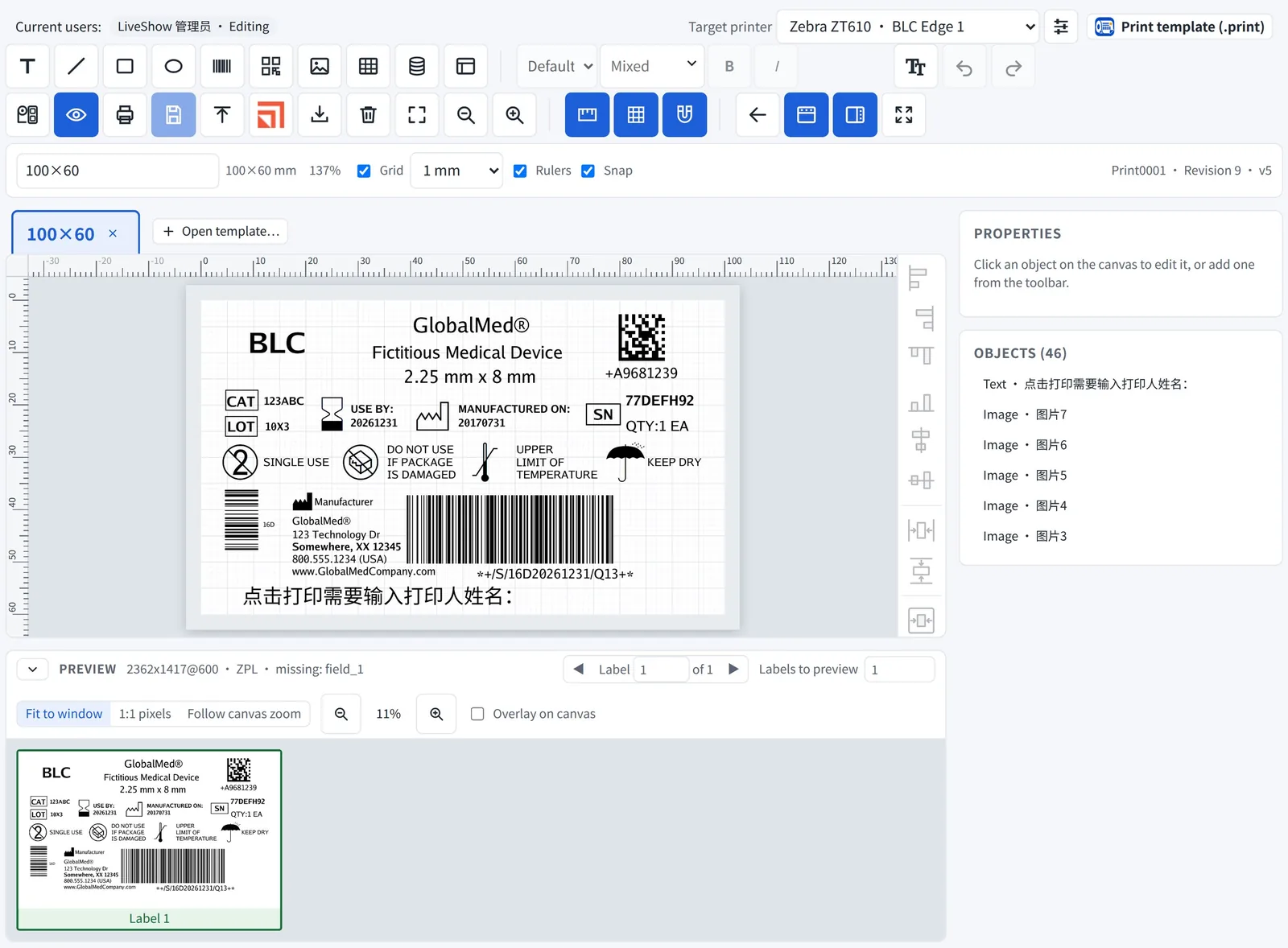
- Simple labels in BLC tooText, barcodes, QR codes, images and tables; GS1-128, GS1 DataMatrix and GS1 QR Code.
Print process management
Who prints, which template, which printer, what was printed: all in view.
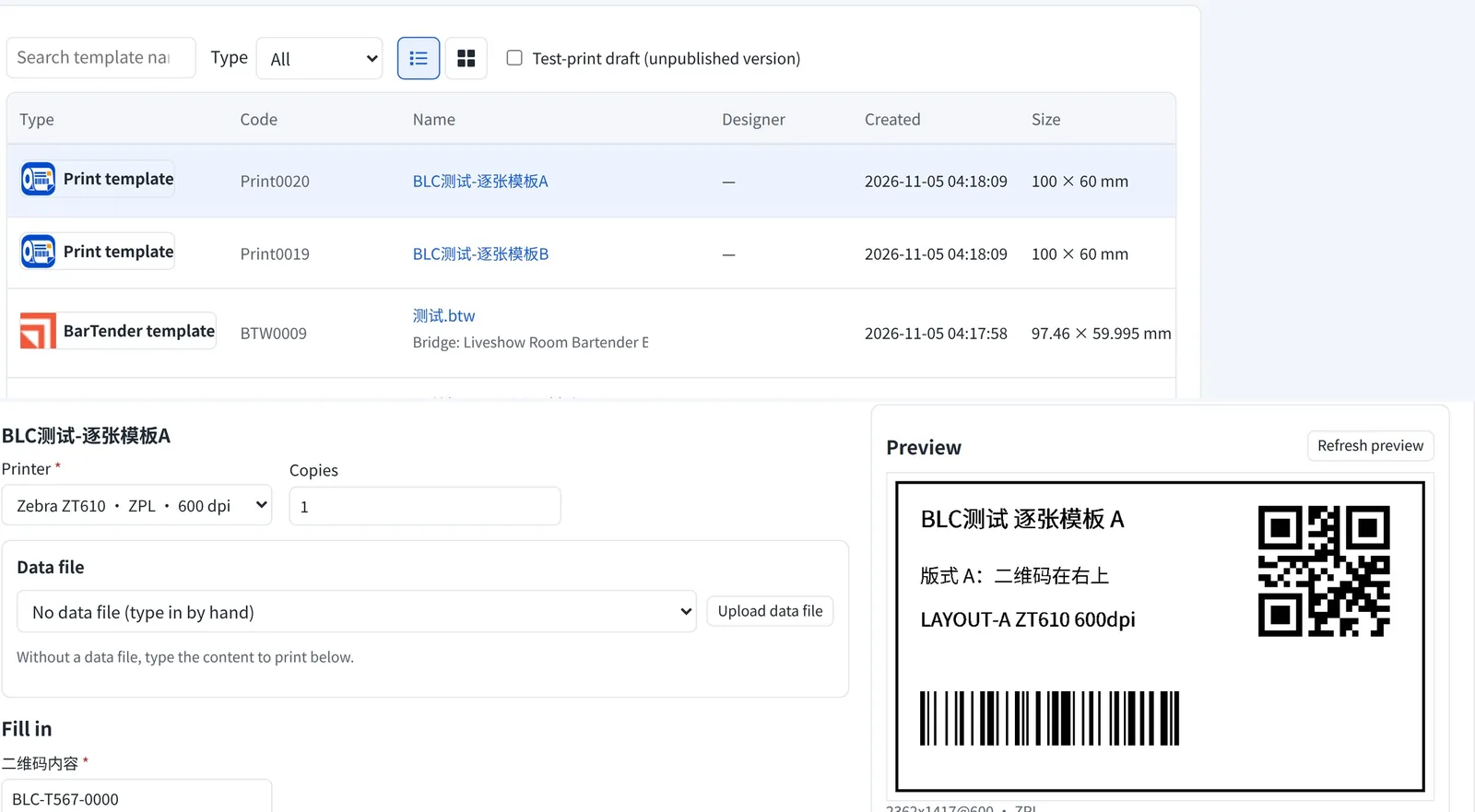
Print workbench
Pick the template, fill in the content, pick the printer, with a live preview. Permissions decide who may use which template and printer.
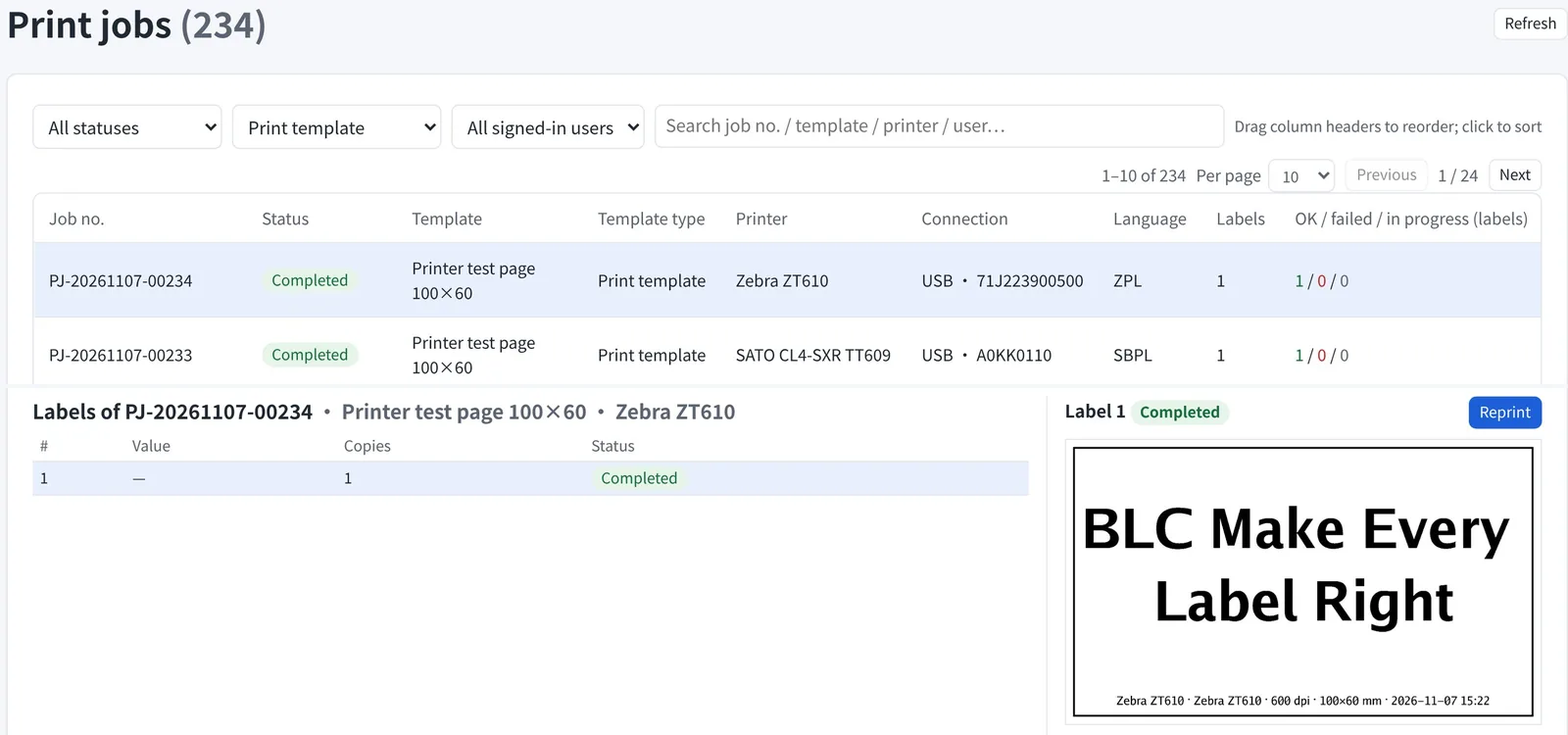
Print job records
Status, progress, cancel and reprint; a job completes when the printer reports it has finished, and every label can be reviewed.
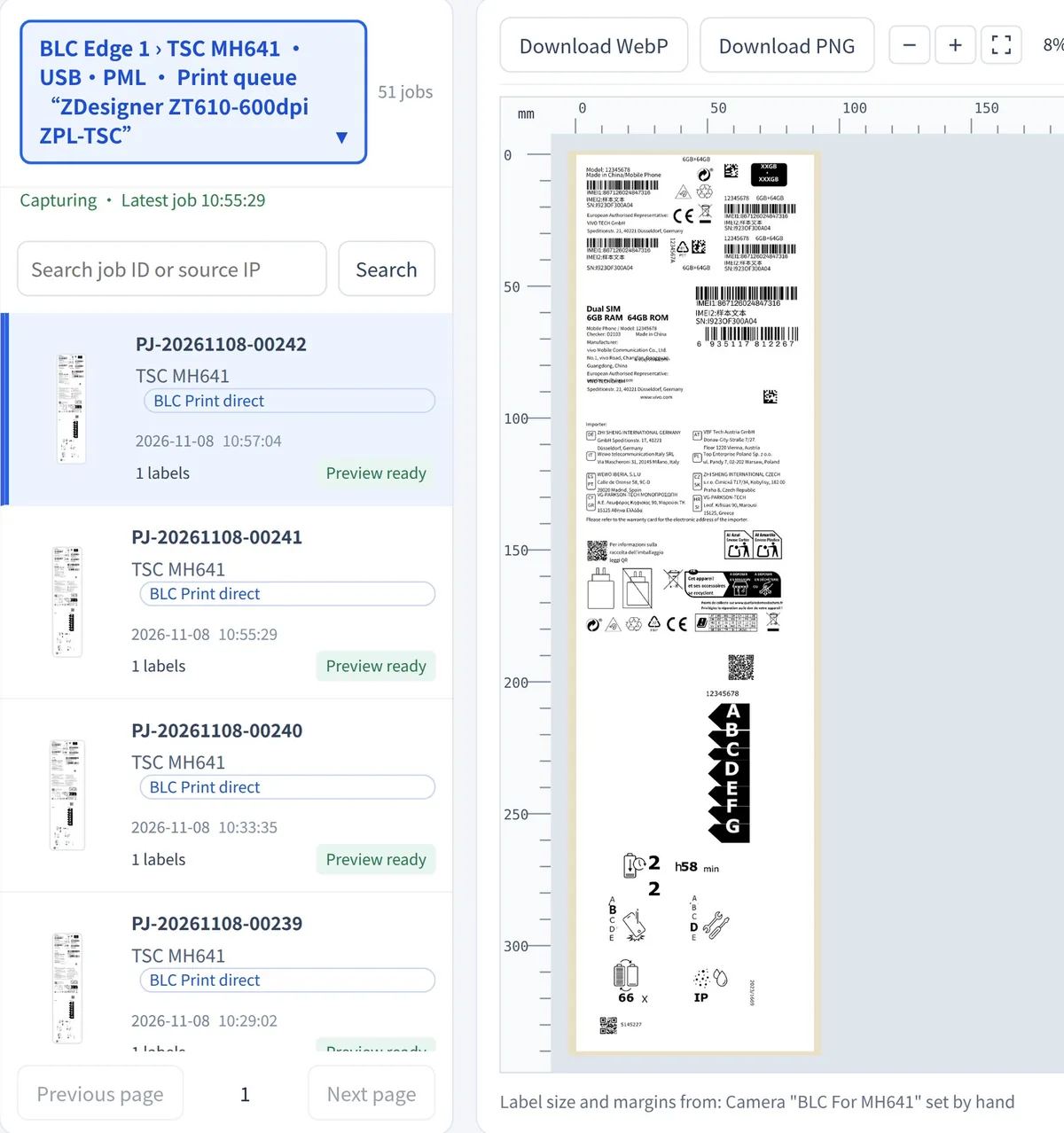
Print observation
See what the printer actually received, from BLC, BarTender or other software.
 Link: MES / ERP integration
Connects MES, ERP and other systems: receives jobs and label data and prints them, then reports print and inspection results back; messages kept for good. Runs through a Link PC (Windows / Linux) by profile; REST API (JSON, token authentication).
Source 4 · Supplies management
Matched supplies, problems traced to the source
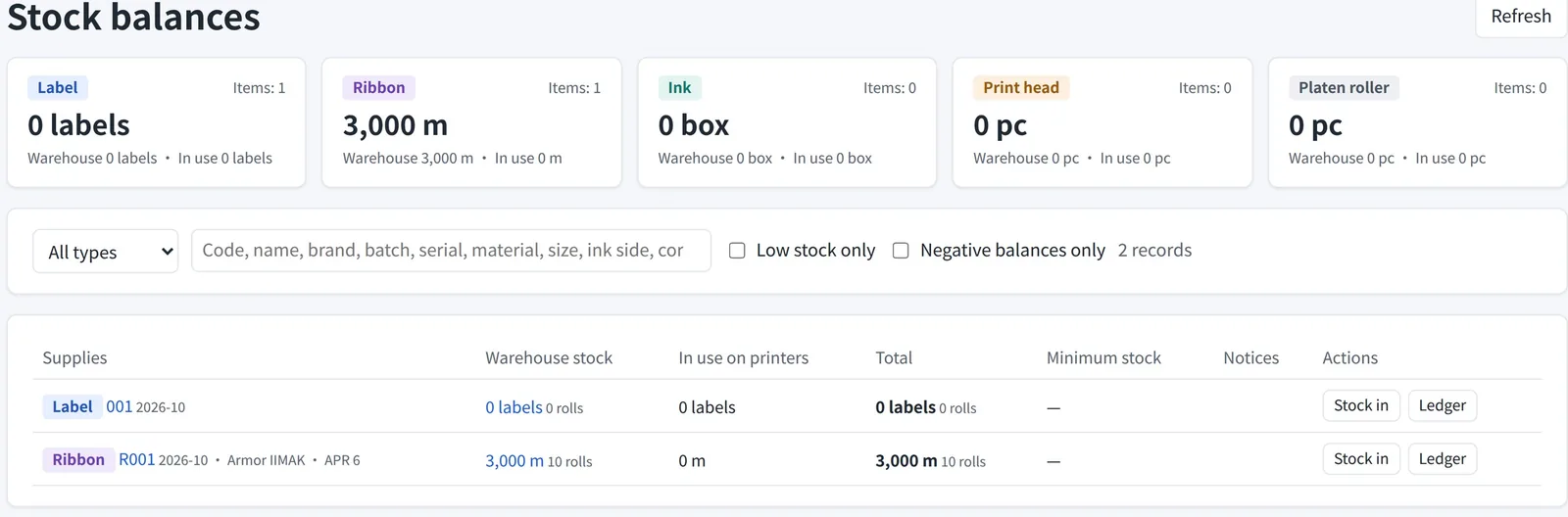
What the template needs and what the printer has installed, compared before printing; what was used and what is left, counted automatically.
- Supplies linked to templatesWhich label stock and which ribbon, saved in the template.
- Check before printingOn a mismatch the operator must confirm to go on; a different brand, ink side or core size is flagged too.
- Usage and stockDeducted after printing; stock ledger, balances, reports and low-stock alerts.
- Printheads and platen rollersTime and distance run on record, so replacement can be planned.
Supplies check before printing · illustration
| Template needs | Installed on printer | ||
|---|---|---|---|
| Label | L-100×60 coated | L-100×60 coated | Match |
| Ribbon | R-2300 resin, CSO | R-1100 wax, CSI | Mismatch |
Ink side differs; please check. [Go back] [Print anyway]
After inspection finds it: back to the source
Where to look first, and how to prevent it.
| Inspection finds | Common cause | Go back to | How to prevent it |
|---|---|---|---|
| Print too light, too dark or fuzzy | Darkness or speed wrong; label and ribbon do not match | Device, Supplies | Save settings in the template; check supplies before printing |
| Wrong content, date or data | Wrong template or wrong data selected | Observer, Print | See what the printer received; print published versions, data from systems |
| Barcode too fine or unreadable | Designed for a higher resolution than the printer | Device, Print | Change printer or widen the barcode; BLC templates warn before printing |
| All content out of position | Offset or calibration wrong; label size differs | Device | Calibrate and confirm with a test page; check the label installed |
| White vertical line, same place every label | Printhead dirty or damaged | Supplies | Clean or replace it; distance and changes on record |
| Nothing printed, or large areas missing | Ribbon run out or fitted the wrong way; wrong label | Supplies | Supplies check before printing; restock on low-stock alerts |
The supplies check compares against the installations recorded in the system; record each roll change promptly. The table lists common cases; find the actual cause on site.
Support for the line
Eyes on the line, help for the operator
When something goes wrong, the operator is not on their own. Engineers can see what is happening and step in without travelling to site.
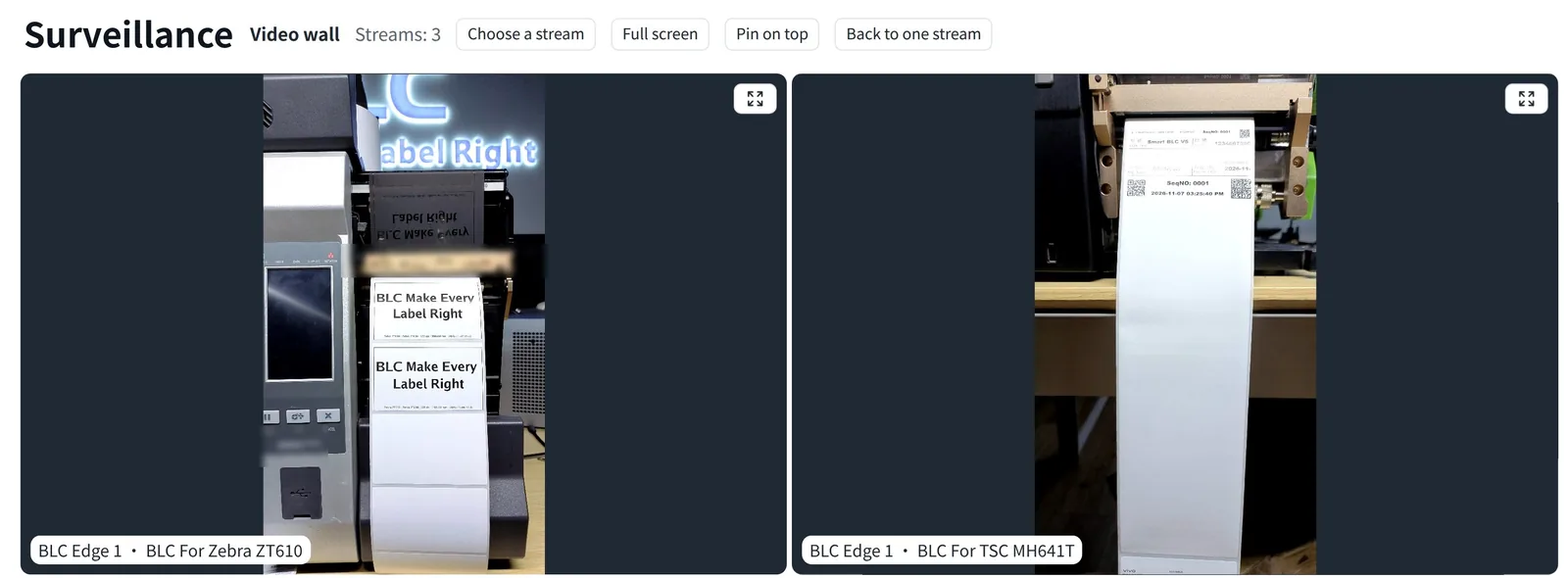
 Video surveillance
- See the line live: a USB camera at the printer exit, usually about 1 second behind real time.
- Video wall: several streams on one screen, pinned on top or full screen, for supervisors and shop-floor displays.
- See the detail: switch between scenes such as wide and close-up, or zoom in.
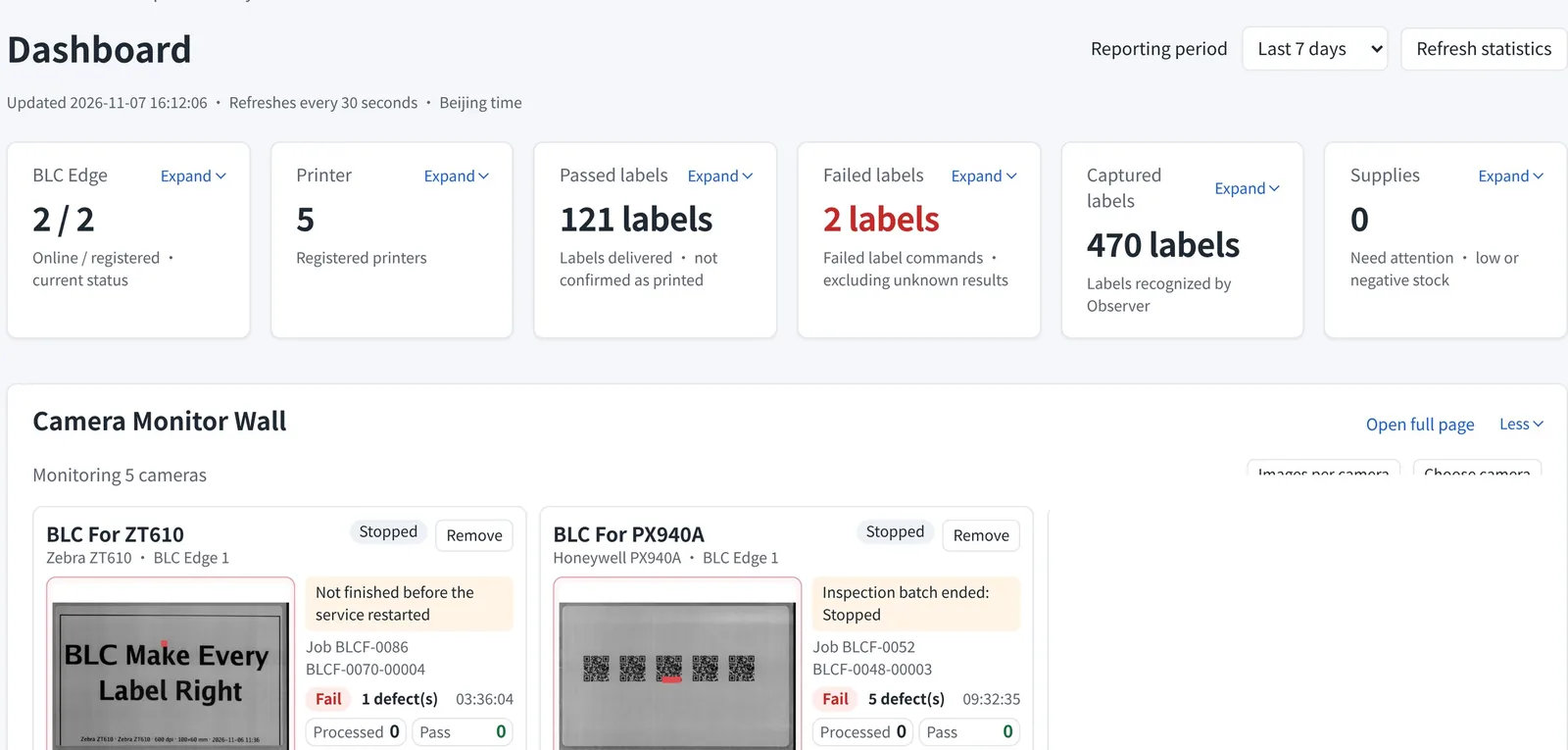
- With inspection: watch the video while the Camera Monitor Wall shows live results.
- Controlled access: users see only devices they have permission for.
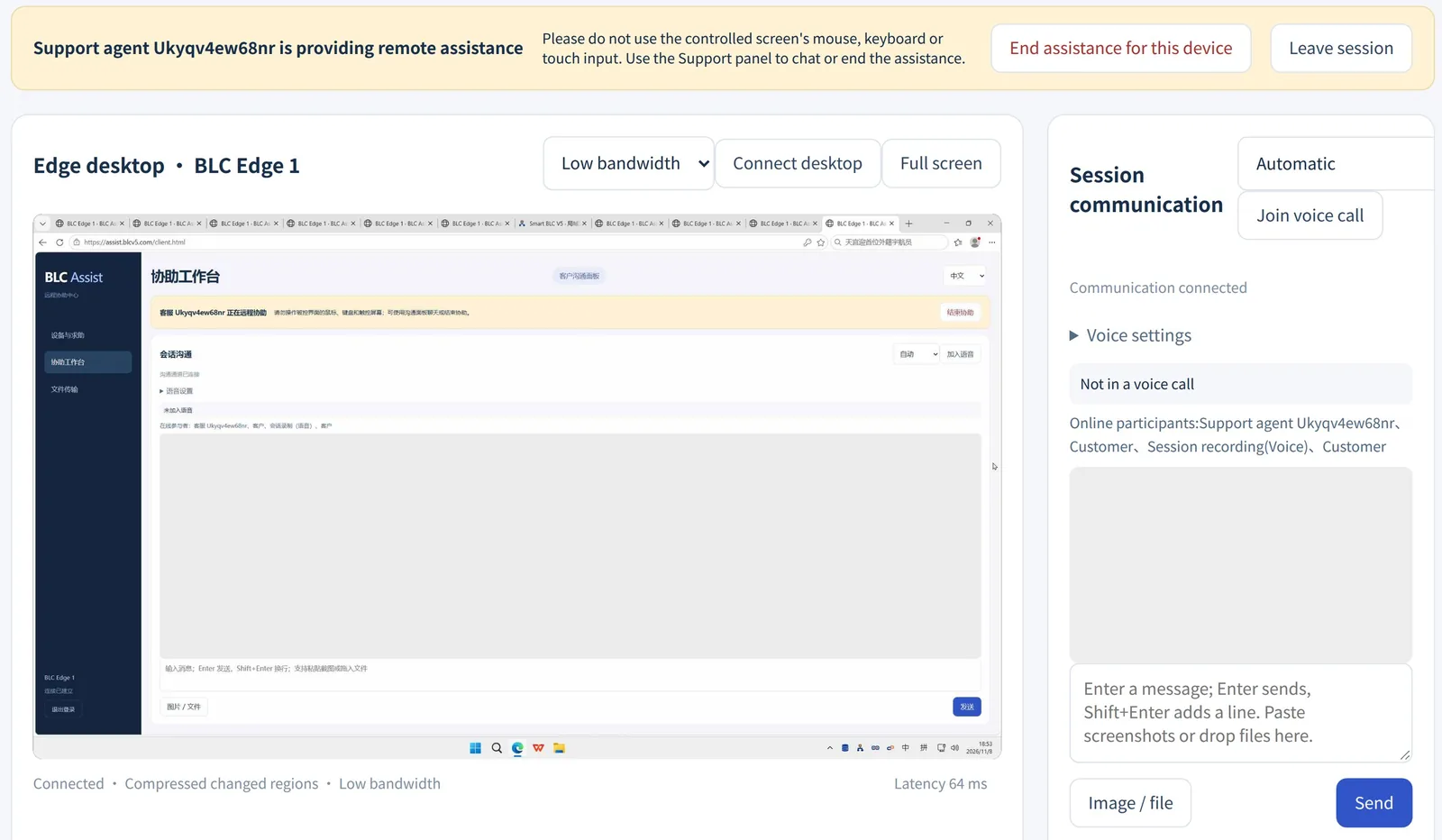
 Remote assistance
- Two ways: operate the Edge screen or the BLC web page.
- Show and tell: text, voice and files; needs the site’s support code or prior permission; sessions recorded.
How one problem gets solved
- FindA fail is detected; the screen flashes and the printer pauses
- SeeThe supervisor opens the video and inspection results
- ConnectSupport connects remotely and talks the operator through it
- SolveBack to the source: settings, supplies or template
- ConfirmPrinting resumes; inspection results show it is solved
- Less scrapProblems stopped before printing
- Less downtimeSite problems solved remotely
- Fewer site tripsEngineers help without travelling
- Full recordPrinting, inspection and supplies on file
Modules are licensed individually. Video surveillance is available in the public cloud and LAN deployments and needs a USB camera on the Edge. BarTender is a trademark of its owner; databases, Excel and other data sources are connected by the BarTender template itself.
Is Smart BLC V5 right for your line?
Contact us for a software demo, sample label inspection or a solution proposal.